
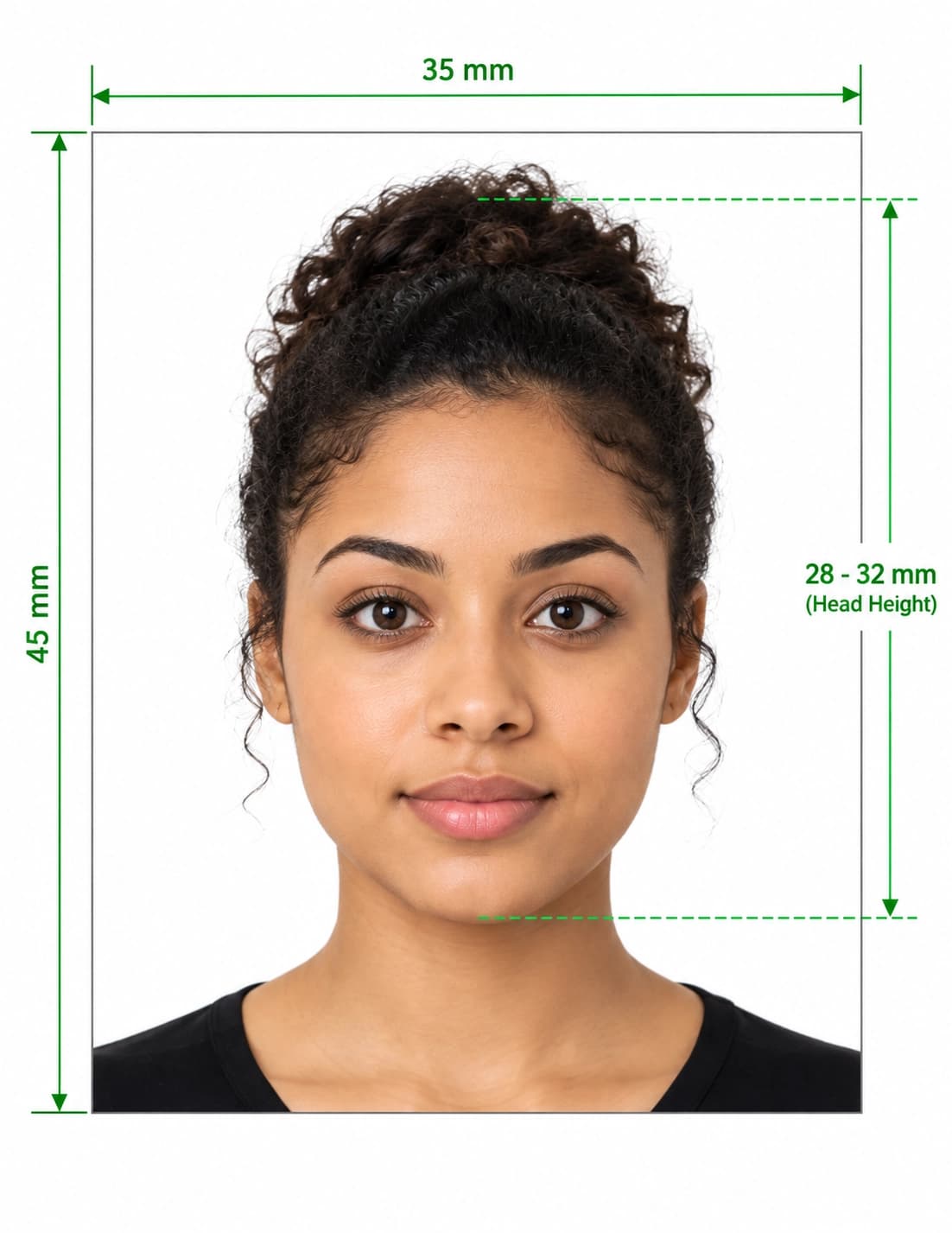
Get a Digital Photo for Your Passport Application
Many passport services now ask you to upload a digital photo instead of posting a print. You do not need a studio to get one. Take a picture on your phone, upload it to our online passport photo maker, and we crop it to the right size, replace the background and check your head against the official range.
Then download a JPEG and upload it with your application. The whole process takes about two minutes.
How to Create a Digital Passport Photo in 5 Steps
- Choose your country. Pick the passport format you need, because pixel sizes differ around the world.
- Upload your picture. Select a clear, front-facing photo from your phone or computer.
- Let the tool crop and resize it. The editor centres your face and sets the correct dimensions.
- Review the checks. The tool removes the background and tests your head size and framing.
- Download your JPEG. Save the file, then upload it to your passport application.
You can retake the picture as often as you like until every check passes.
Digital Passport Photo Specifications by Country
A digital photo must meet the right pixel size, file type and file size. Here are common examples:
| Country | Digital size | Format and notes |
|---|---|---|
| United Kingdom | At least 600 × 750 px (35 × 45 mm ratio) | JPEG, colour, taken within the last month |
| United States | 600 × 600 to 1200 × 1200 px (square) | JPEG, colour, under 240 KB |
| India | 630 × 810 px | JPEG, small file, plain white background |
| European Union (Schengen) | Varies by country | Usually 35 × 45 mm ratio, so check your portal |
Each service sets its own limits, so always read the upload page before you submit. For country details, see our pages for the UK passport photo, UK passport renewal photo, US visa and passport photo and Indian passport photo.
What Makes a Good Digital Passport Photo?
A digital photo faces both human rules and technical ones. Check both before you upload.
Technical Requirements
- File type: Save the photo as a JPEG. Phones often save HEIC or PNG files that portals reject.
- Pixel size: Match the exact or minimum pixels your country asks for.
- File size: Stay within the portal's limit, because oversized files fail to upload.
- Colour: Use a colour photo with no filters or effects.
- No resizing afterwards: Do not stretch, shrink or recompress the file after you download it.
Photo Requirements
- Face the camera. Look straight at the lens with your head level.
- Keep a neutral expression. Close your mouth and keep your eyes open.
- Use a plain background. Most countries ask for white, cream or light grey.
- Avoid shadows. Light your face and the wall evenly.
- Remove your glasses. Many countries no longer accept them, except for documented medical reasons.
- Show your full face. Keep hair away from your eyes, and wear headwear only for religious or medical reasons.
Digital vs Printed Passport Photos
Choose the output that fits your application.
| Digital photo | Printed photo | |
|---|---|---|
| Best for | Online applications and portals | Paper forms and in-person visits |
| Output | JPEG at the required pixel size | Prints at the exact millimetre size |
| Checking | Portals often check it automatically | You check it yourself |
| Cost | Low, with no printing | Printing cost per set |
| Speed | Instant download | Depends on printing or delivery |
If you need both, download the JPEG and a print sheet. For printing tips, read our guide to taking a passport photo at home.
Common Digital Passport Photo Mistakes
| Mistake ❌ | Fix ✅ |
|---|---|
| Uploading a HEIC or PNG file | Save as a JPEG |
| Wrong pixel size | Choose your country in the tool |
| File too large | Use the tool's output, and do not add filters |
| Resizing the photo after download | Upload the file exactly as downloaded |
| Shadows or a patterned background | Use a plain wall and let the tool replace the background |
| Smiling or squinting | Keep a neutral face, and take several shots |
| Scanned old photo | Take a fresh picture |
| Filters or retouching | Use the untouched picture |
What You Get With Our Digital Passport Photo Maker
- Automatic cropping: The editor sets the correct frame around your face.
- Exact resizing: It outputs the pixel size your country asks for.
- Background replacement: It swaps your wall or room for a plain background.
- Head-size check: It measures your head against the official range.
- JPEG export: It gives you a file that portals accept.
- Photo converter: Turn an existing picture into a digital passport photo without a retake.
- Phone-friendly design: Upload straight from your camera roll.
How to Take a Good Source Picture
A clear picture gives the cleanest result, so take a few minutes to set up.
- Ask someone to help. Selfies distort your face, so have a friend hold the camera at eye level.
- Face a window. Soft daylight removes shadows from your face.
- Stand about one metre from the camera. Keep the lens level with your eyes.
- Use a plain wall. A simple backdrop gives a sharper background cut-out.
- Leave space around your head. The tool needs room to crop correctly.
- Look straight ahead. Relax your face and keep your head level.
If you already have a picture, our image to passport size converter explains which pictures convert well.
How to Upload Your Digital Photo
- Start your application on your country's official passport website.
- Find the photo step, and select your JPEG file.
- Wait for the automatic check, if the service offers one.
- Fix any warning. Retake the picture or adjust it in our editor, then upload it again.
- Complete and submit your application.
Always use the official government website, and avoid third-party sites that ask you to hand over your passport details.
Digital Passport Photos for Children and Babies
Children need the same size and background, but many countries relax some rules for young ones. Babies often do not need to look at the camera, and no one else may appear in the photo. Check your country's guidance for children before you apply.
Get Your Digital Passport Photo Now
Upload your picture, choose your country, and download a correctly sized digital passport photo in minutes. No studio visit and no editing skills needed.
Frequently Asked Questions
Everything you need to know about official Digital Photo for Passport Online requirements and specifications.
How do I get a digital photo for my passport?
Take a clear, front-facing picture, upload it to our tool, and choose your country. Download the JPEG and upload it with your application.
What file format does a digital passport photo need?
Most services want a JPEG. Phones sometimes save HEIC files, so convert or export as a JPEG before you upload.
What size is a digital passport photo?
It depends on the country. The UK asks for at least 600×750 pixels, India asks for 630×810 pixels, and the US asks for a square between 600×600 and 1200×1200 pixels.
Is there a free digital passport photo maker?
You can upload your picture and preview the result before you download. The final file is a paid download, so confirm the current terms in the editor.
Can I take a digital passport photo with my phone?
Yes. Take a clear picture in even daylight, upload it, and the tool prepares the size and background.
Can I use a selfie for a digital passport photo?
Only if it is sharp, front-facing and well lit. Use the rear camera, and have someone else take the picture if you can.
Do I need to print a digital passport photo?
No, if your application is fully online. Some paper applications still need prints, so check your instructions.
Will my digital passport photo definitely be accepted?
No tool can promise that. The issuing authority makes the final decision, but our checks help you avoid the most common mistakes.
Ready to create your verified Digital Photo for Passport Online?
Upload your photo in seconds and receive guaranteed HMPO / ICAO compliant digital photos and printable sheets.
Upload Photo & Create Now